Yap: My Home-Made Wispr Flow
Typing is slow and annoying. So instead, I use speech to text to go faster and work hands free.
For the longest time, I used Wispr Flow because it was convenient and fast. However, sometimes it would format things in ways I didn't like, or it would try way too hard to correct my text. I'd end up editing the pasted text anyway... a few times.
So as a side project, I decided to build my own version of Wispr Flow. Meet Yap :)
It's a speech to text app that runs 24/7 on my Mac. Press F5, talk, press F5 again, and the cleaned-up text gets pasted into whatever app has focus. Let's do this.
🎙️ Living in the Menu Bar
Yap is a native Swift app for Mac. It lives in the menu bar at the top right of my screen.
When I'm not recording, it shows a microphone icon. Once I start recording, a red dot appears next to the microphone.

🏗️ How It Works
The pipeline has 4 steps:
- Mic:
AVAudioEngineconverts the audio to 16 kHz mono. With "Keep mic warm" on, it holds the last 0.3 s of audio so your first word doesn't get cut off. - Speech to text: The audio streams to Deepgram (Nova-3) over a WebSocket while you talk. When you stop, only the last bit still needs transcribing.
- Cleanup: Claude Haiku 4.5 from Anthropic removes filler words and fixes punctuation. While you're still talking, finished sentences get cleaned in the background every 30 s, so long dictations paste as fast as short ones. If the cleanup fails or looks wrong, the raw transcript gets pasted instead.
- Paste: The text goes on the clipboard, then a
CGEventpresses ⌘V.
Streaming with Deepgram is the secret sauce for speed. The audio gets transcribed over time instead of all at once at the end, so there's barely any waiting when I'm done talking.
The F5 Trick
On MacBooks, F5 is actually the Dictation key. So Yap remaps it to a real F5 with hidutil at every launch, and gives it back to macOS if you pick a different hotkey.
🖥️ The UI
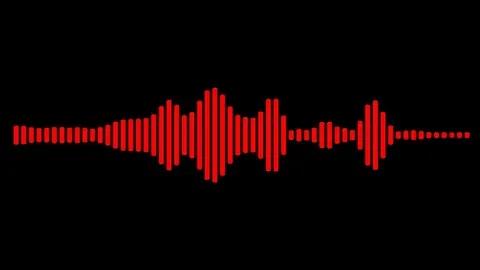
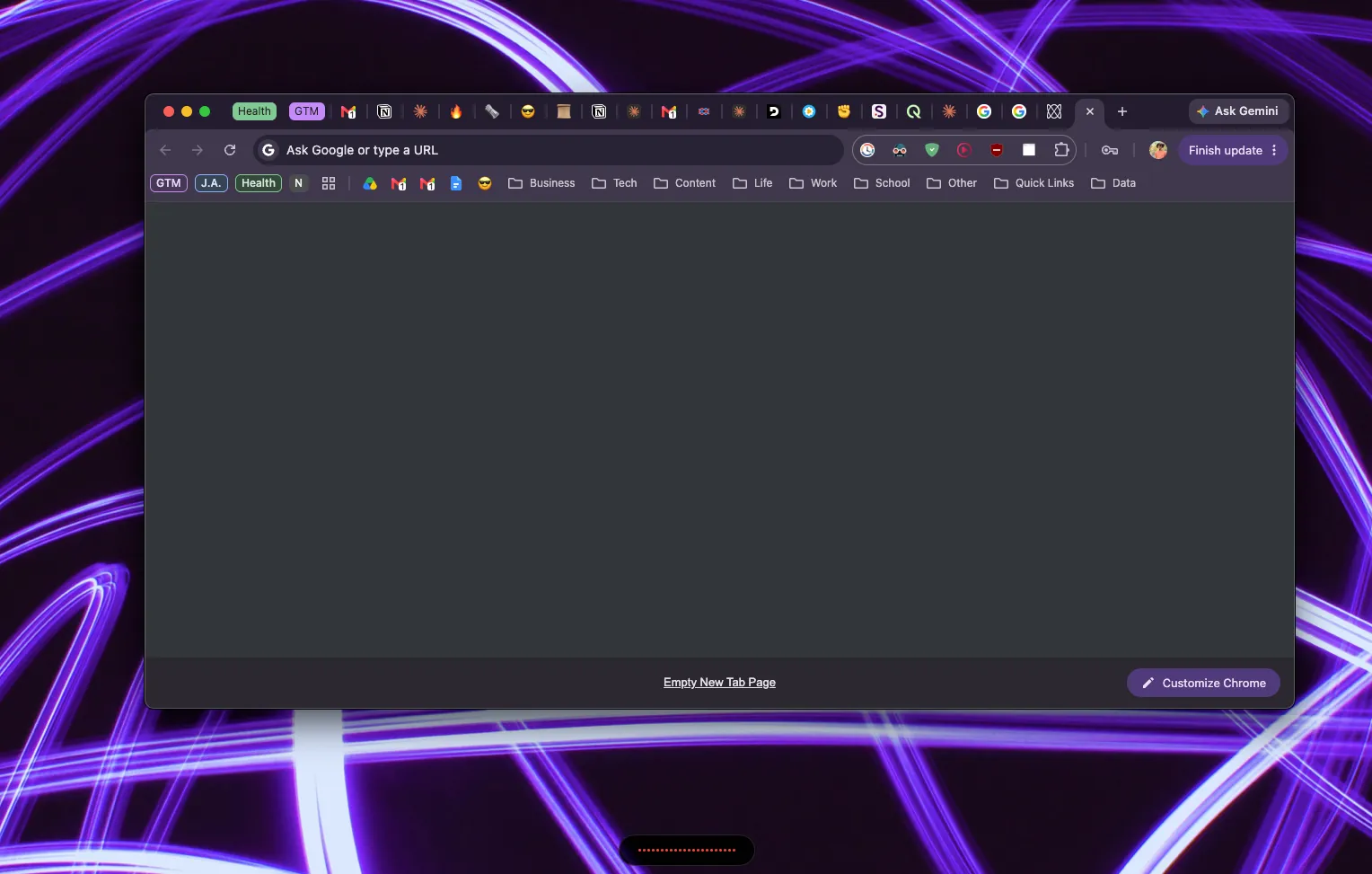
At the bottom of the screen, there's a red waveform pill that shows audio waves while you're talking, so you know your audio is actually being detected. You can drag it anywhere and it remembers the spot.
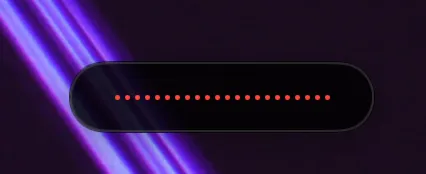
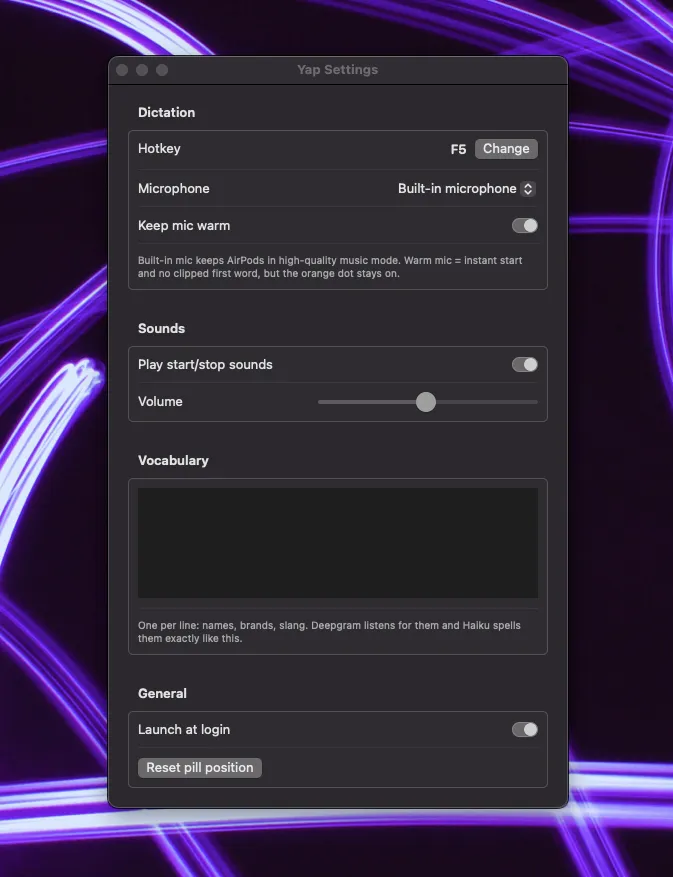
There's also a settings menu where you can change the hotkey, pick which mic you're listening to (built-in by default so AirPods stay in high-quality mode), toggle the warm mic, sounds and volume, add custom vocabulary, and launch at login.
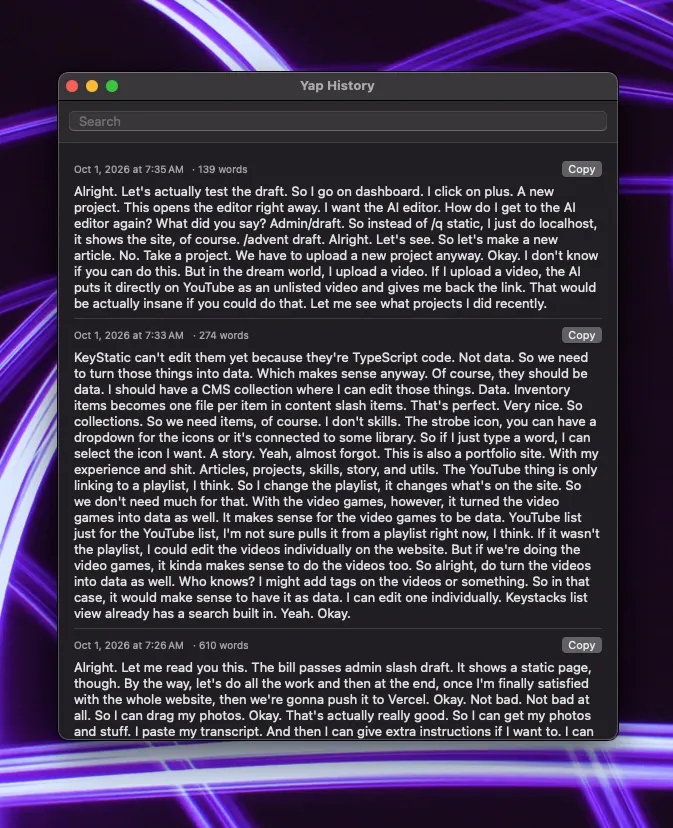
And of course, there's a searchable history of your past transcripts that you can copy again in one click.
🛠️ Build
It only needs the Command Line Tools. No Xcode.
./scripts/install.sh # builds, signs, installs to ~/Applications, relaunchesOn first launch, you allow Microphone and Accessibility, then add your Deepgram and Anthropic API keys from the menu bar icon.
The API keys stay in a local file only my user account can read, the history is a JSON file, and the log keeps the timings of every dictation.
🚀 Reflections
Overall, I'm quite satisfied with this project. It works very well.
- I rarely see transcription mistakes.
- The AI is fairly smart. It knows proper nouns even if I haven't added them to the custom vocabulary yet.
- It's fast.
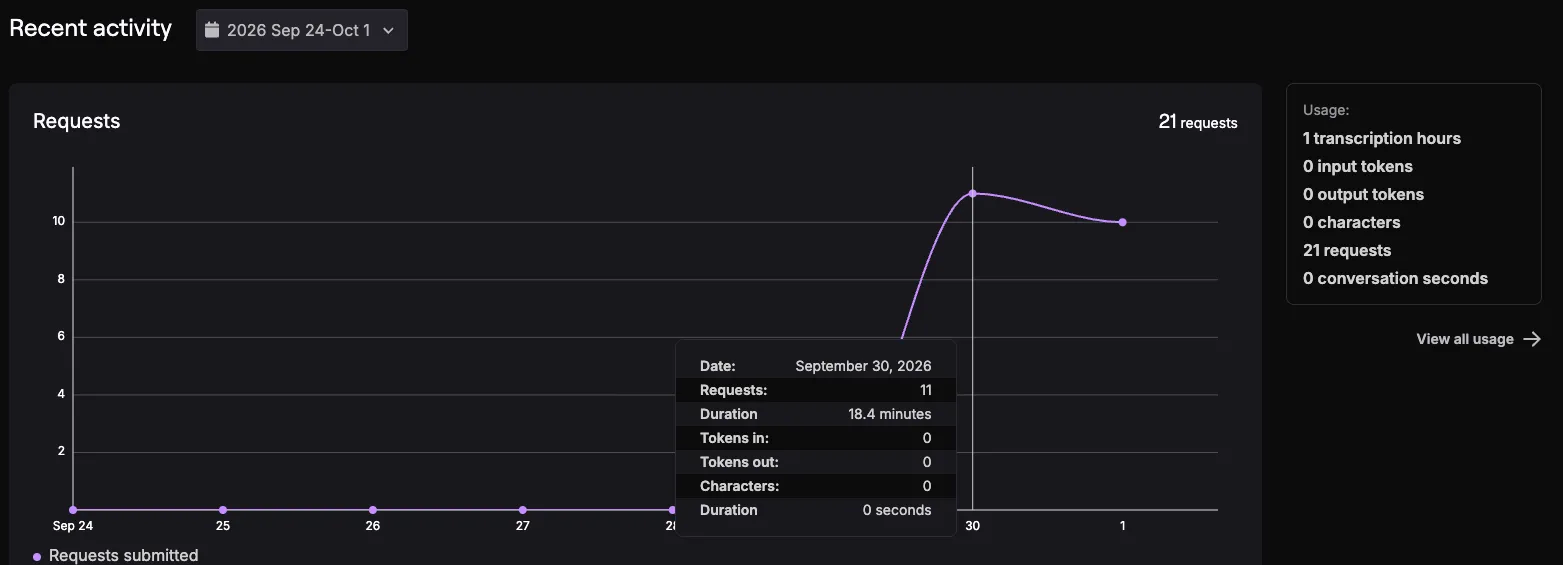
- It's cheap.
It works. Perfect. 🫡